










How to Keep Your Gaming Laptop Cool
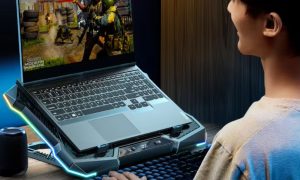
Learn how to keep your gaming laptop cool and prevent overheating during gaming sessions.
How to keep your gaming laptop cool is one of the most common questions gamers ask today. Modern gaming laptops deliver impressive performance, but they also generate significant heat while running demanding games and applications. If temperatures become too high, performance can drop, components can wear out faster, and the overall gaming experience can suffer.
Understanding how to keep your gaming laptop cool is essential for maintaining stable FPS, preventing thermal throttling, and extending the lifespan of your hardware. Whether you play competitive esports games or graphically demanding AAA titles, proper cooling can make a major difference.
Why Gaming Laptops Overheat

Gaming laptops are designed to pack powerful hardware into compact bodies. While this provides portability, it also limits airflow.
Common causes of overheating include:
- Dust accumulation inside vents
- Blocked airflow
- High room temperatures
- Long gaming sessions
- Aging thermal paste
- Excessive background applications
Many users searching for how to keep your gaming laptop cool discover that a combination of these issues is often responsible for high temperatures.
Signs of Gaming Laptop Overheating

Before solving the problem, it is important to recognize the symptoms.
Common signs include:
- Sudden FPS drops
- Game stuttering
- Loud fan noise
- Hot keyboard surfaces
- Unexpected shutdowns
- Reduced CPU and GPU performance
When these symptoms appear regularly, your laptop is likely experiencing thermal throttling.
Ideal Gaming Laptop Temperature Range
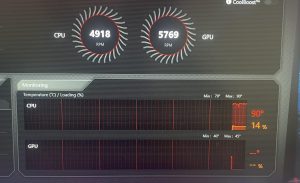
Knowing safe temperature ranges can help you monitor your laptop effectively.
Idle Temperature
40°C to 60°C
Normal Gaming Temperature
70°C to 85°C
Heavy Gaming Load
80°C to 88°C
Danger Zone
Above 90°C
If temperatures frequently exceed 90°C, immediate action should be taken.
Best Cooling Pad for Gaming Laptop
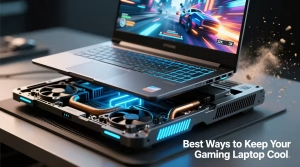
One of the easiest solutions for gamers learning how to keep your gaming laptop cool is using a cooling pad.
A quality cooling pad can:
- Increase airflow
- Reduce heat buildup
- Improve ventilation
- Lower temperatures by several degrees
The best cooling pad for gaming laptop users typically includes multiple fans, adjustable height settings, and USB-powered operation.
Cooling pads are especially useful in warm climates where ambient temperatures are already high.
Clean Dust from Fans and Air Vents
Dust is one of the biggest causes of overheating.
Over time, dust blocks airflow and forces cooling fans to work harder.
To maintain cooling efficiency:
- Clean vents every few months
- Use compressed air carefully
- Remove dust from intake areas
- Keep gaming areas clean
Regular maintenance is one of the simplest ways to keep temperatures under control.
Improve Airflow and Ventilation
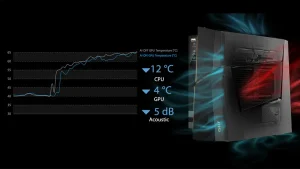
Another effective answer to how to keep your gaming laptop cool is improving airflow.
Best practices include:
- Place the laptop on a hard surface
- Avoid beds and sofas
- Elevate the rear slightly
- Keep air vents unobstructed
- Use laptops in well-ventilated rooms
Good airflow allows hot air to escape more efficiently.
Replace Thermal Paste
Thermal paste transfers heat from the processor and graphics chip to the cooling system.
Over time, thermal paste dries out and becomes less effective.
Benefits of thermal paste replacement include:
- Lower CPU temperatures
- Lower GPU temperatures
- Improved cooling efficiency
- Better long-term performance
For older gaming laptops, replacing thermal paste can significantly reduce temperatures.
Optimize Fan Speed Settings
Most modern gaming laptops provide software that allows users to control fan speeds.
Higher fan speeds can:
- Increase cooling performance
- Reduce thermal throttling
- Improve gaming stability
Popular gaming brands often include performance profiles that allow users to switch between silent mode and gaming mode.
Reduce Background Processes
Many gamers overlook background applications.
Programs running in the background increase CPU usage and generate additional heat.
Before gaming:
- Close unnecessary applications
- Disable unused startup programs
- Monitor system usage
- Keep software updated
Reducing system load helps maintain lower temperatures.
Take Breaks During Long Gaming Sessions
Continuous gaming causes heat accumulation.
Even efficient cooling systems need time to dissipate heat.
Good habits include:
- Taking breaks every 1–2 hours
- Allowing fans to cool the system
- Shutting down demanding applications periodically
These simple practices help maintain healthy operating temperatures.
Gaming Laptop Cooling in Kuwait
Gaming laptop cooling Kuwait users face additional challenges because of environmental conditions.
Factors include:
- High outdoor temperatures
- Warm indoor environments
- Dust accumulation
- Extended gaming sessions
Because of these factors, gamers in Kuwait should prioritize cooling accessories and regular maintenance more than users in cooler regions.
Final Thoughts
How to keep your gaming laptop cool is an important topic for every gamer. Overheating can reduce performance, shorten hardware lifespan, and negatively impact your gaming experience.
By using a cooling pad, cleaning dust regularly, improving airflow, replacing thermal paste, optimizing fan settings, and maintaining good gaming habits, you can significantly reduce temperatures and improve system stability.
For gamers looking to maximize performance in 2026, proper cooling remains one of the most effective upgrades you can make for your gaming laptop.